
Installation walkthrough
This is the full, screenshot-by-screenshot walkthrough. Two parts:
- Part 1 — download and install the Companion. End state: a local worker running on your machine, heartbeating to the dashboard.
- Part 2 — install the Saddle (VSCode extension), dispatch a job to your worker, see the response.
If you’d rather watch than read, there are two companion videos on the download page — each mirrors one part of this walkthrough.
Part 1 — Companion
Section titled “Part 1 — Companion”The Companion is the desktop app that runs your local brain (“Roz”), manages your workers, and keeps the connection to the ModelReins dashboard alive.
1. Open the download page
Section titled “1. Open the download page”Go to modelreins.com/download in any browser.
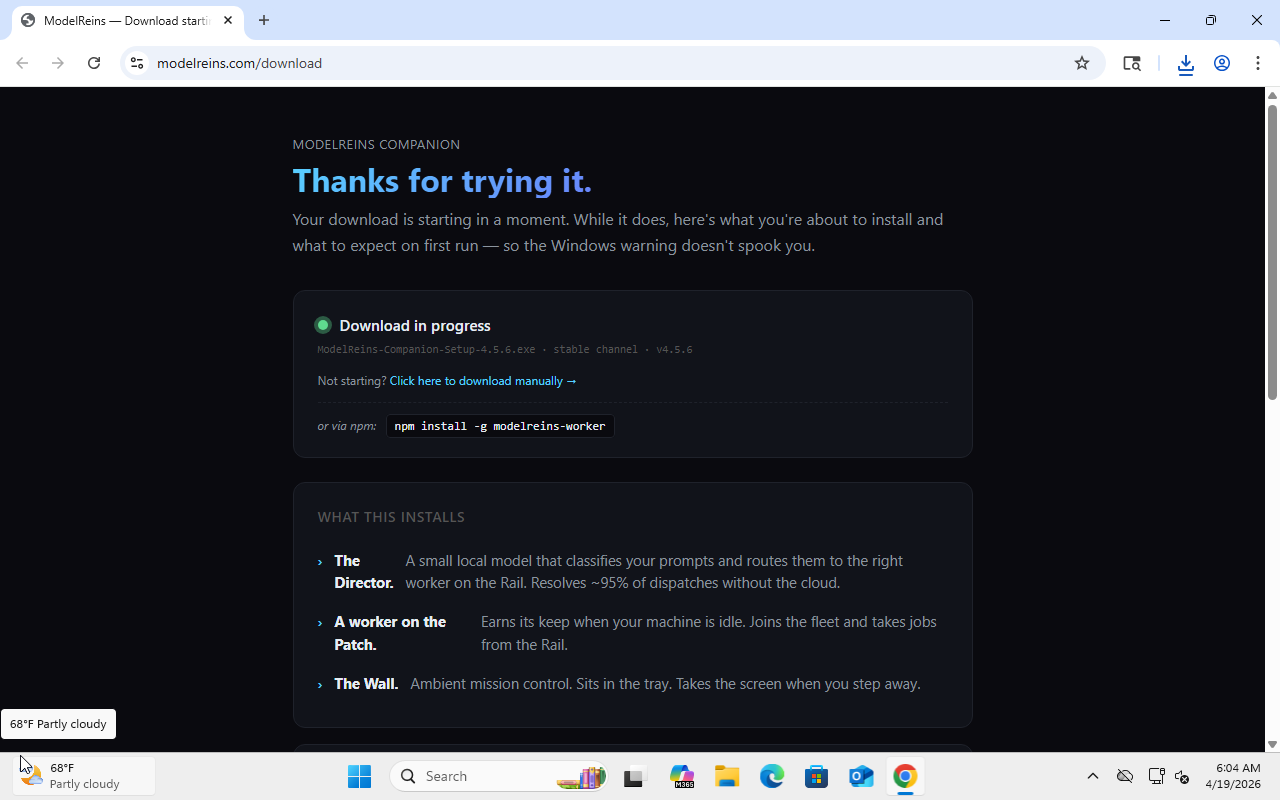
The page lists both the Companion installer (.exe) and the Saddle extension (.vsix). You’ll grab the Companion first.
2. Download ModelReins.exe
Section titled “2. Download ModelReins.exe”Click the Windows download button. Your browser saves ModelReins.exe to Downloads/.
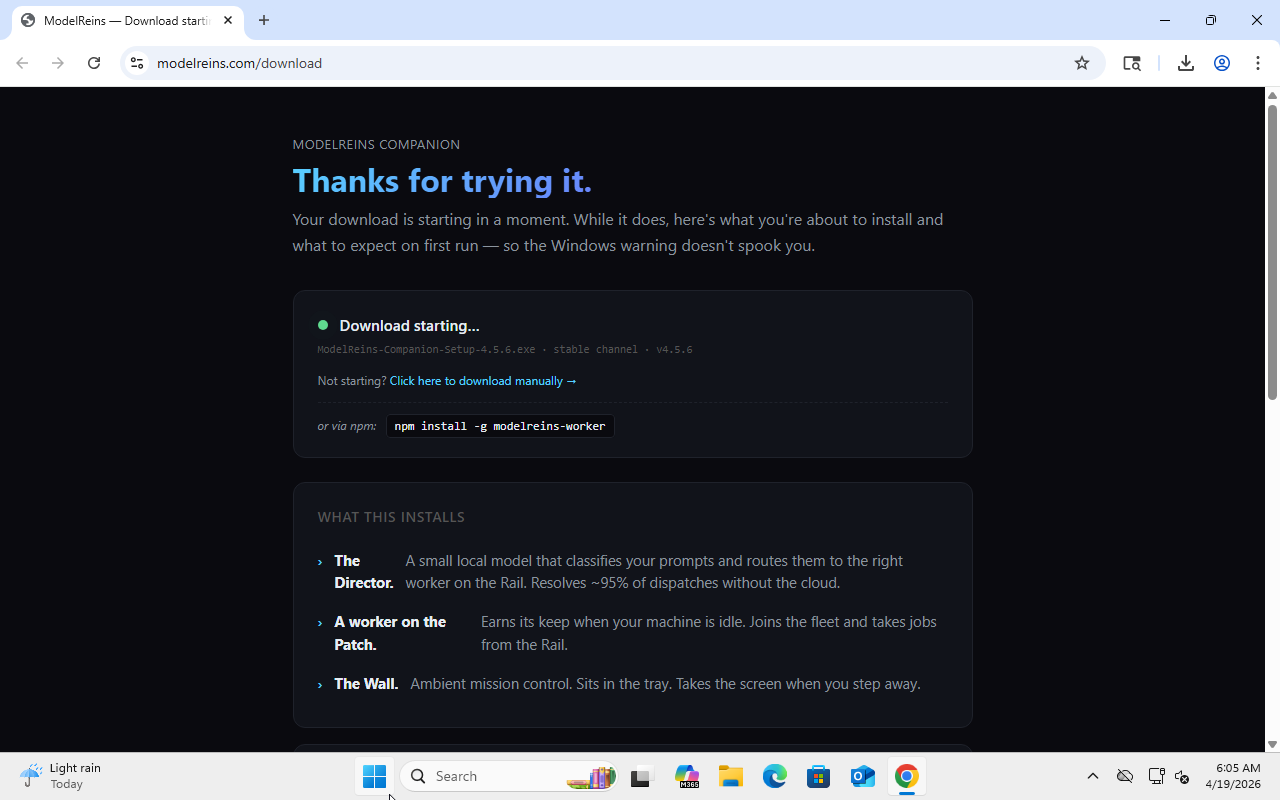
The installer is about 90 MB. On a fast connection it’s done in seconds.
3. Run the installer
Section titled “3. Run the installer”Double-click ModelReins.exe in your Downloads folder.
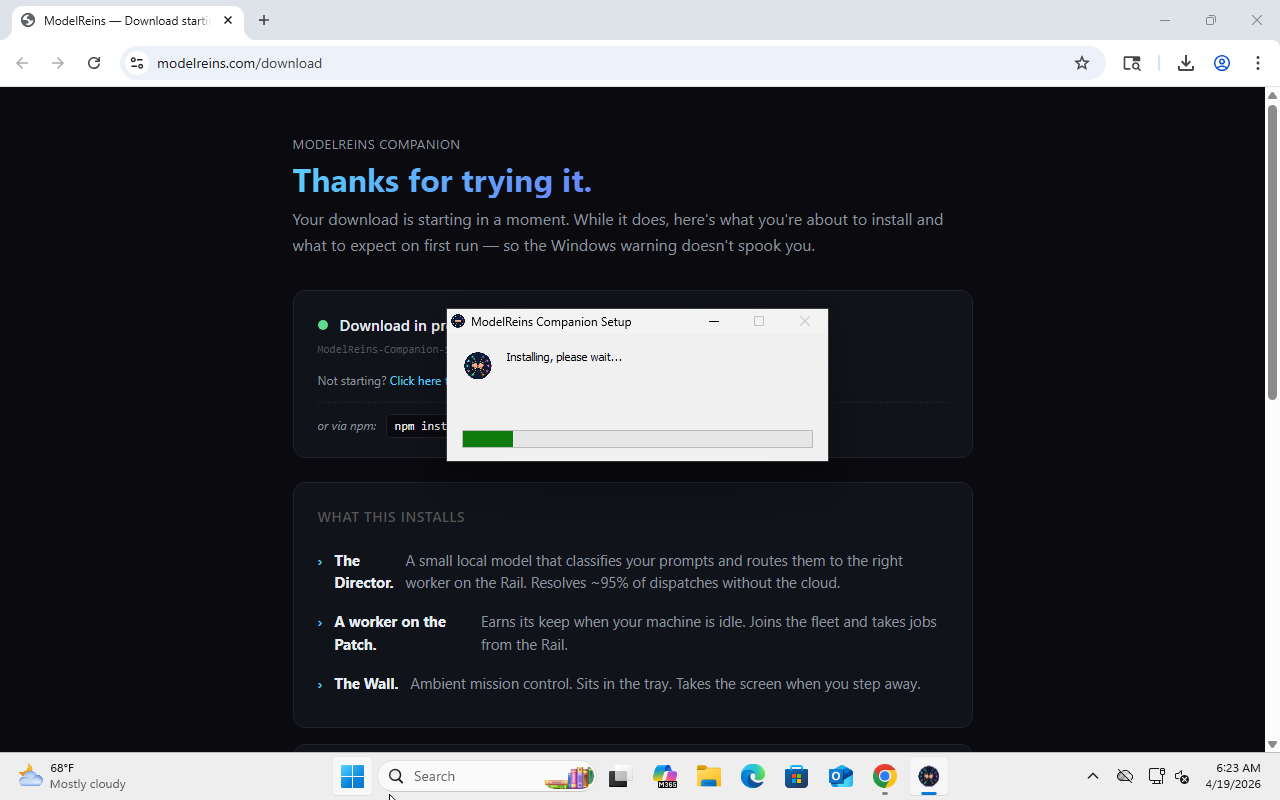
The installer is a classic Windows NSIS one-click installer. It doesn’t ask you anything — it just installs to your user folder and launches the Companion.
4. The wizard
Section titled “4. The wizard”The Companion opens and shows a welcome wizard. It walks you through six steps, most of which happen automatically.
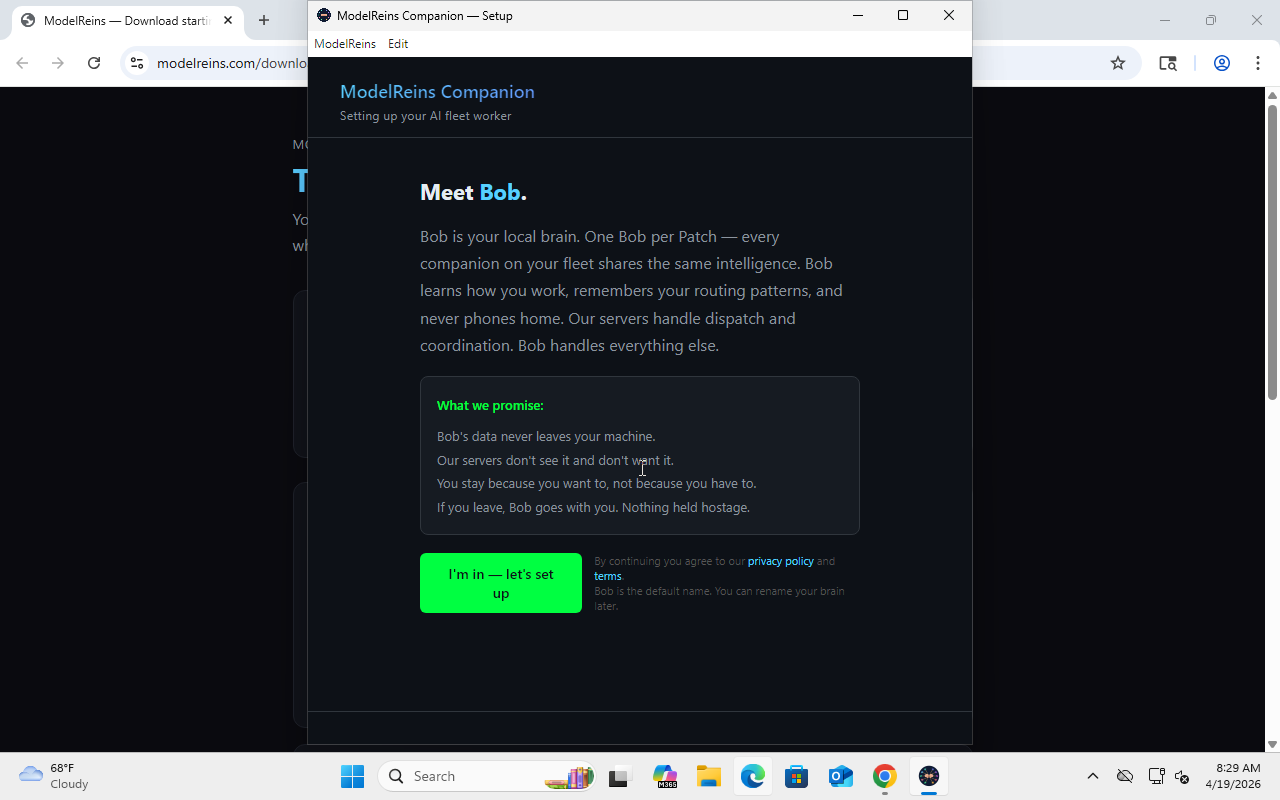
Step 1: Hardware check — detects your CPU and RAM so the wizard can pick a model that will actually run on your machine.
Step 2: Ollama detection — Ollama is the local AI runtime ModelReins uses for on-device models. If it isn’t installed, the wizard downloads it and installs it silently for you.
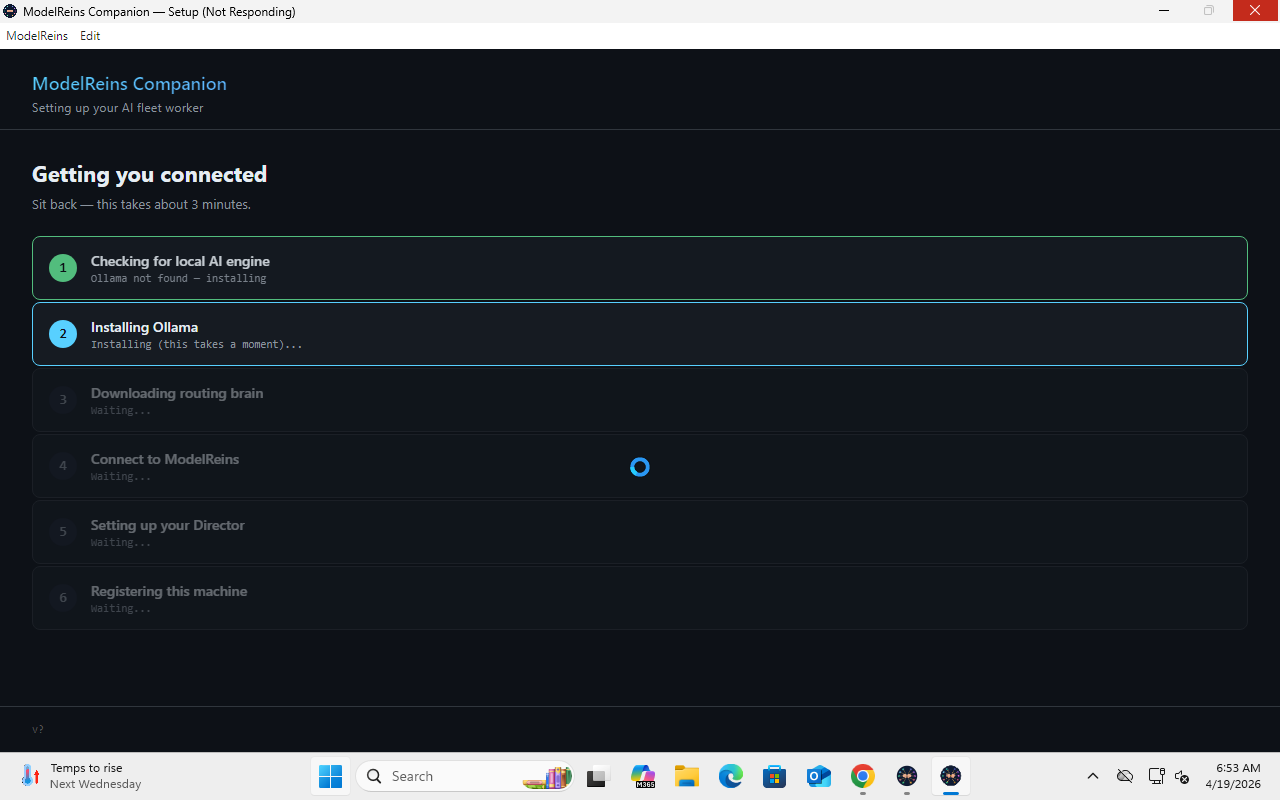
Step 3: Your Director — sets up the local brain (a lightweight Postgres runtime) that Roz uses to remember things between sessions.
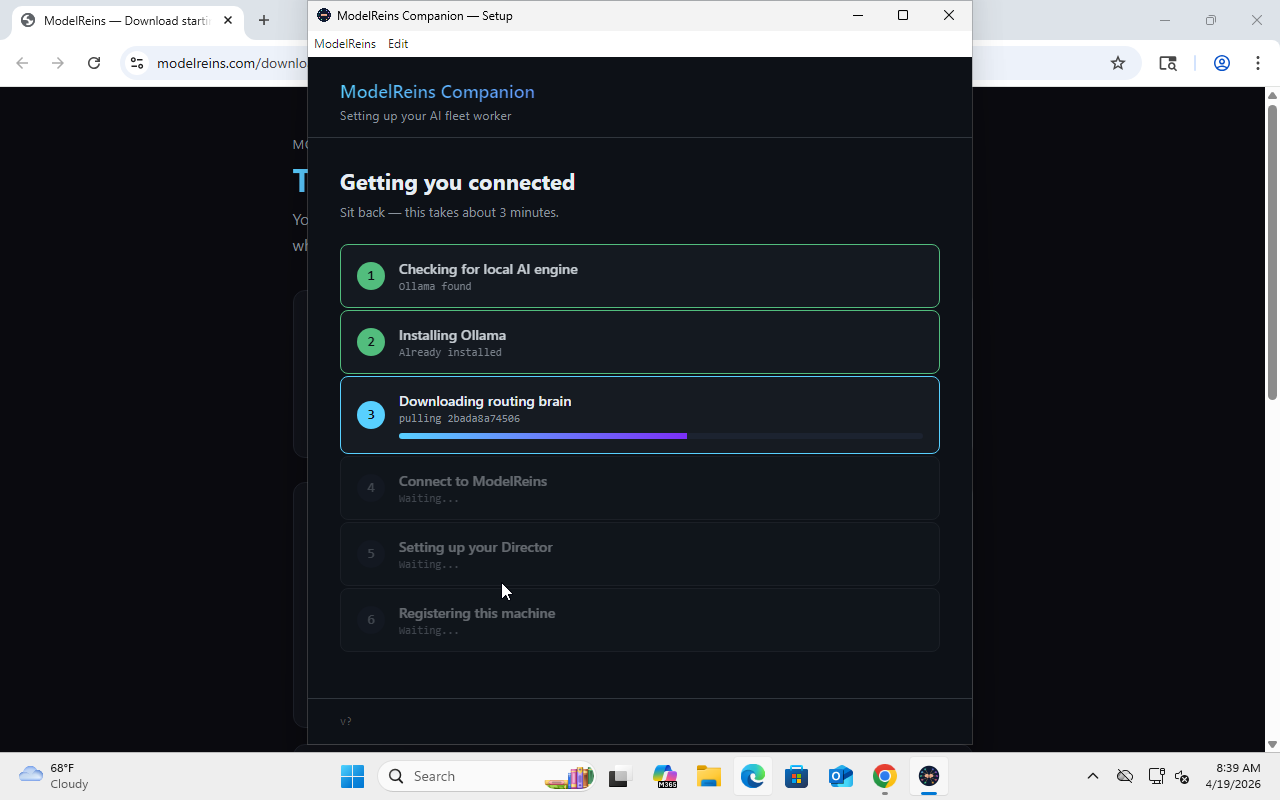
Step 4: Pull a model — downloads a ~4.4 GB routing model (qwen2.5:7b by default). This step takes the longest — typically 2-5 minutes on a home internet connection. A progress bar shows the download.
Step 5: Account — either sign in to an existing ModelReins account, or create one from inside the wizard.
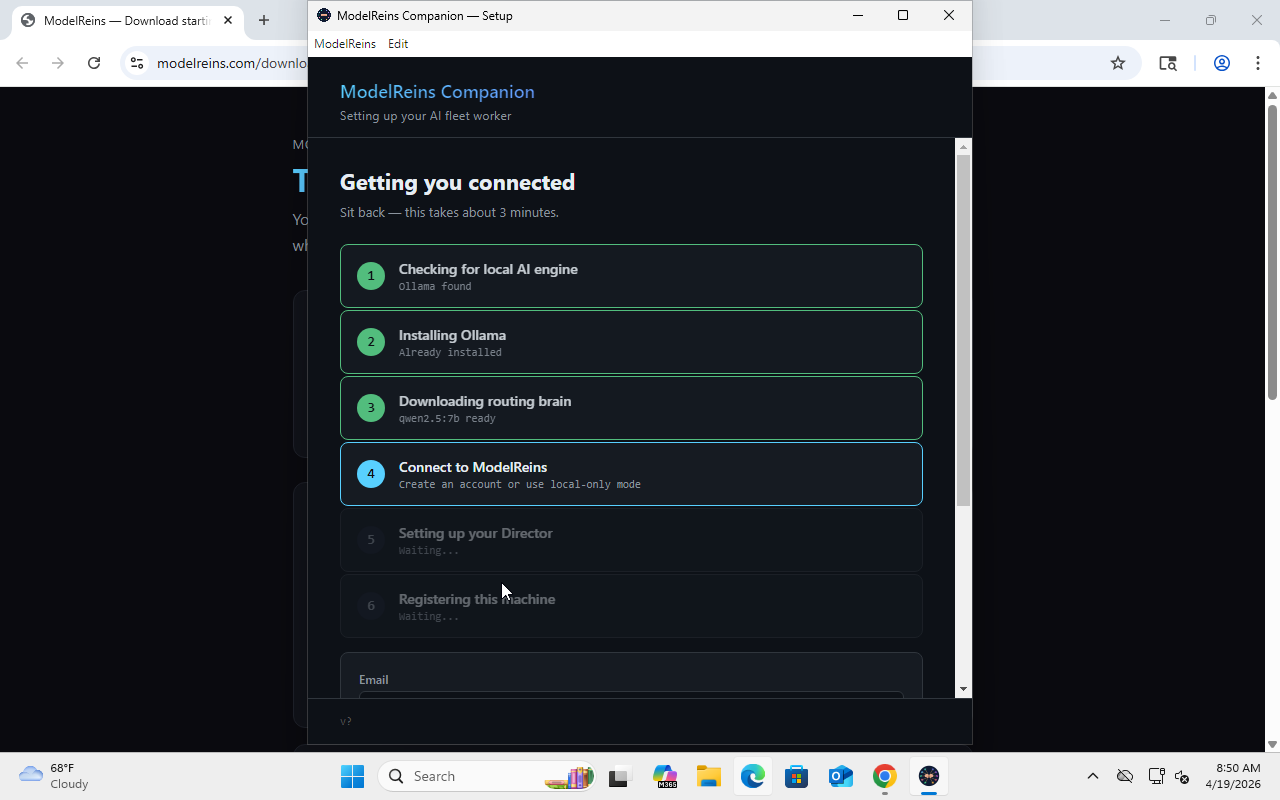
If you already have an account (for example, you signed up at modelreins.com before getting here), click Already have an account? and enter your email + password.
If this is your first time, fill in email, password, and an organization name (just a label for your fleet). No email verification is required to start using the Companion — your first worker registers immediately.
Step 6: Registering this machine — the Companion sends a heartbeat to the dashboard identifying this machine as a worker. Takes under a second.
5. You’re connected
Section titled “5. You’re connected”The wizard shows a “You’re connected” screen and the Companion drops into your system tray (bottom-right of the taskbar).
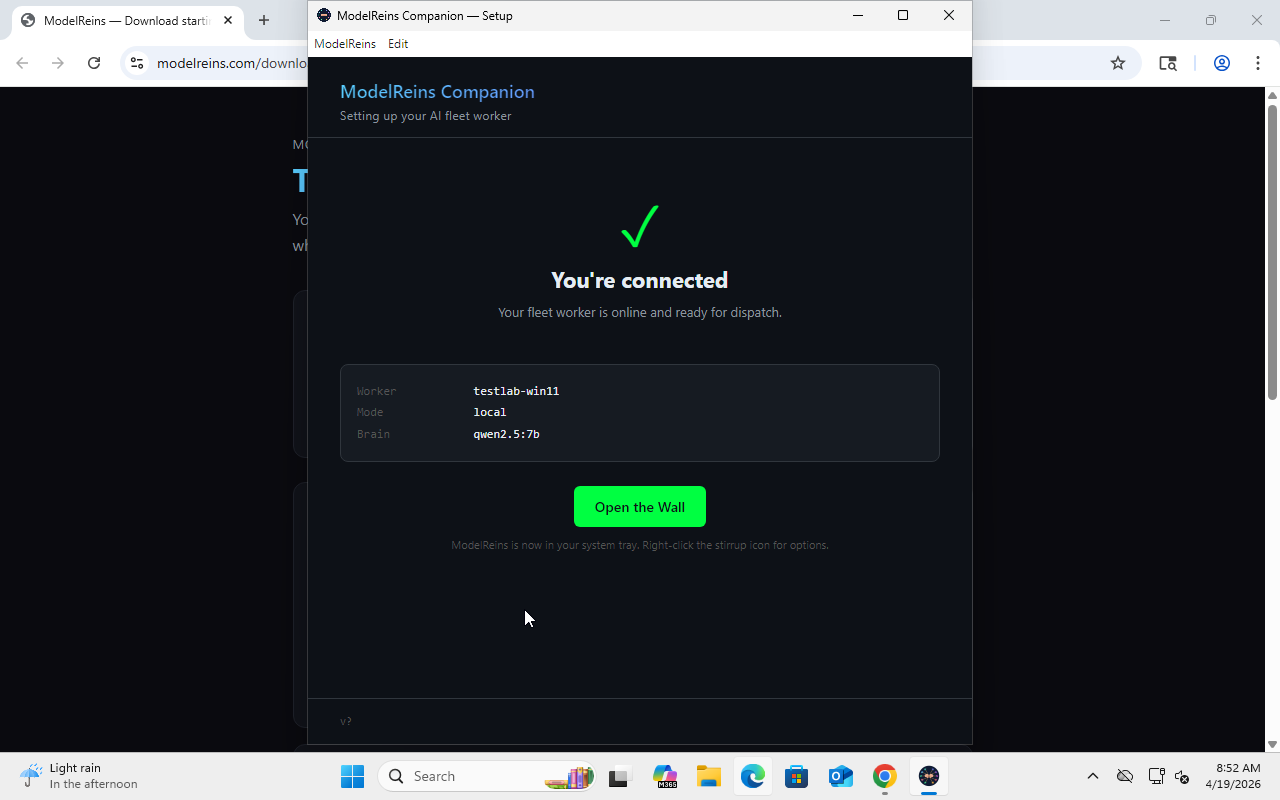
At this point, your machine is a worker. If you open the ModelReins dashboard and go to Fleet, you’ll see this machine listed as online.
Part 2 — Saddle + first dispatch
Section titled “Part 2 — Saddle + first dispatch”The Saddle is the VSCode extension that lets you dispatch jobs to your fleet directly from your editor. This part assumes you already finished Part 1 and the Companion is running.
6. Download the Saddle .vsix
Section titled “6. Download the Saddle .vsix”Back at modelreins.com/download, click the Saddle download link. Your browser saves ModelReins-Saddle.vsix to Downloads/.
7. Install the extension in VSCode
Section titled “7. Install the extension in VSCode”Open VSCode. In the activity bar on the left, click the Extensions icon (or press Ctrl+Shift+X).
Click the ... menu at the top of the Extensions sidebar, then Install from VSIX…. Browse to Downloads/ and pick ModelReins-Saddle.vsix.
A small toast appears at the bottom-right: “Completed installing extension from VSIX.”
8. Open the Saddle panel
Section titled “8. Open the Saddle panel”The ModelReins icon (a saddle/stirrup mark) appears in your VSCode activity bar. Click it.
The Saddle probes the local Companion’s loopback pair endpoint and picks up your API token silently. You’ll see a brief “ModelReins: connected to your local Companion” notification. This auto-pair works because the Companion is running on the same machine.
If you’re on a different machine than the Companion, you can still use the Saddle — paste your API token from the Companion’s tray menu instead.
9. See your fleet
Section titled “9. See your fleet”The Saddle panel shows the workers that are online for your account. You should see at least your own machine listed, with its capability tags (what kinds of jobs it can run).
10. Dispatch “hi”
Section titled “10. Dispatch “hi””Type hi in the input at the bottom of the Saddle panel and hit Enter.
The job runs on your local Companion (you’ll see a running spinner). On a CPU-only machine this takes 20-45 seconds. On a GPU machine, a few seconds.
When it finishes, the response appears in the panel.
That’s your first dispatch. The job went from the Saddle → the router → your local Ollama-backed worker → back to the Saddle as a response. Nothing left your machine.
What’s next
Section titled “What’s next”- First worker — dispatch to a second machine and see the fleet route across hosts.
- Providers — plug in cloud AI providers (Claude, OpenAI, OpenRouter, etc.) when you need more horsepower than your local model.
- Effort tiers — the one dial that controls cost vs. quality.
- The Lexicon — the vocabulary.
Troubleshooting
Section titled “Troubleshooting”“Windows protected your PC” on the .exe download. Click More info → Run anyway. See the SmartScreen note in Step 3.
Companion stuck at “waiting for Ollama”. Companion 4.5.3 had a Windows IPv6 bind bug that caused this stall. Upgrade to 4.5.5 or newer — download a fresh ModelReins.exe from the download page.
Wizard asked for my credentials twice. The dashboard login form occasionally needs a second click on the first visit (known cosmetic bug). Inside the Companion wizard, the login button is single-click reliable.
Dashboard shows “no worker” after signup but before Companion install. Expected — the Companion is the thing that registers a worker. Finish Part 1, refresh the dashboard, your machine appears.
Double-clicking the installer launched two installers. Fixed in Companion 4.5.5 (NSIS install mutex). Download fresh if you saw this on an older build.
Saddle panel says “Not connected yet” with a Connect button. Auto-pair only works when the Companion is running on the same machine. Click Connect, paste your API token from the Companion’s tray menu.